Not only it is the duty of the purse string holders needing to know precisely, without being clouded by technical jargon, what a software solution can do for the enterprise, every users need to know. This ensure that the buyers and users know precisely what they are getting and what they are paying for.
It is refreshing to come across this article in Financial Times relaying the experience of a very wise and persistent director of an enterprise that "demanded the computing experts translate their plans into plain English."
Far too often, as I have observed, that the recipients of software products choose to keep quiet for fear of showing up their ignorance or failure to comprehend of the materials from the so-called "technical experts". They all should emulate this "Dennis".
In fact, it is the communication fault of the "technical experts" that fail to explain the materials, particularly the functional part, in the terms that the users can understand. I don't expect them to explain how data base schemas are designed, XML messages being passed around or how to pool connections but at least they should be able to answer user-centric questions like what is the response time of say 20,000 users accessing the system, the stability of the system in terms of how often one expects a failure.
In a theme similar to the "Why Software Sucks" but at a different level, the messages from the FT article are worth remembering. Admitting one does not understand the gobbledegook, often silently, and then not demanding answers to one's satisfaction is an abdication of one's duty.
Monday, January 6, 2014


Thursday, November 21, 2013
Caveats in using GnuCash - Time Zone dependent
For anyone that uses GnuCash to manage an account and then making this account available to someone in a different country (more correctly different time zone), you need to be aware of the treatment of transaction date in GnuCash as it can cause disagreement.
Or for traveller that takes their account on a trip and diligently changing the time zone on arrival of each location and then recording transaction en route. For example, if you travel from NYC and visit HK record a transaction, and return to NYC, GnuCash will render the transaction date for the HK transaction differently when viewed in NYC.
To understand this time zone dependency one needs to understand how GnuCash records the transaction date, which is stored in transactions.post_date.
GnuCash stores each transaction date (entered in local date) in UTC by converting the local date you enter taken as at 0000 hour using the system time zone and it does not stores the time zone information of the transaction date. But GnuCash always displays the transaction date in local date by conversion using the system time zone. If the transaction journals contain records recorded in different time zones, the user can be confused when viewing these transactions.
Recently I ran into a problem when I was reconstructing an account from a pile of statements from Hong Kong. I was entering the transactions, whose dates were clearly in Hong Kong Time zone using Brisbane Time zone (UTC+10) unaware of the conversion mechanism underneath.
When the GnuCash account was then shown in Hong Kong, after changing the system time zone to that of Hong Kong (UTC+8), all the transaction dates were one date behind even though the time zone difference was only 2 hours difference. How could this small change resulted in a 24 hours shift?
It turns out GnuCash drops the time when rendering the transaction date. Hence a transaction date of May 23, 2012 (at 0000) in Brisbane Time Zone recorded as 20120522140000 is converted to Hong Kong Time zone as 22/05/2012 2200 and displayed as 22/05/2012 after discarding the time.
Because GnuCash always uses 0000 hours on recording and then dropping the time after converting to local date/time, this can give an incorrect date, like a 24 hours shift.
For some other time zone difference the change does not yield any difference. It all depends on the shift.
This date treatment means:
1) that the database of GnuCash is tightly dependent on the time zone and one is ill-advised to change the system time zone. If you move domicile, you may have to create a brand new GnuCash database for that new time zone.
2) If dispatching the database to a different time zone, warn them conversion may alter the transaction date.
Or for traveller that takes their account on a trip and diligently changing the time zone on arrival of each location and then recording transaction en route. For example, if you travel from NYC and visit HK record a transaction, and return to NYC, GnuCash will render the transaction date for the HK transaction differently when viewed in NYC.
To understand this time zone dependency one needs to understand how GnuCash records the transaction date, which is stored in transactions.post_date.
GnuCash stores each transaction date (entered in local date) in UTC by converting the local date you enter taken as at 0000 hour using the system time zone and it does not stores the time zone information of the transaction date. But GnuCash always displays the transaction date in local date by conversion using the system time zone. If the transaction journals contain records recorded in different time zones, the user can be confused when viewing these transactions.
Recently I ran into a problem when I was reconstructing an account from a pile of statements from Hong Kong. I was entering the transactions, whose dates were clearly in Hong Kong Time zone using Brisbane Time zone (UTC+10) unaware of the conversion mechanism underneath.
When the GnuCash account was then shown in Hong Kong, after changing the system time zone to that of Hong Kong (UTC+8), all the transaction dates were one date behind even though the time zone difference was only 2 hours difference. How could this small change resulted in a 24 hours shift?
It turns out GnuCash drops the time when rendering the transaction date. Hence a transaction date of May 23, 2012 (at 0000) in Brisbane Time Zone recorded as 20120522140000 is converted to Hong Kong Time zone as 22/05/2012 2200 and displayed as 22/05/2012 after discarding the time.
Because GnuCash always uses 0000 hours on recording and then dropping the time after converting to local date/time, this can give an incorrect date, like a 24 hours shift.
For some other time zone difference the change does not yield any difference. It all depends on the shift.
This date treatment means:
1) that the database of GnuCash is tightly dependent on the time zone and one is ill-advised to change the system time zone. If you move domicile, you may have to create a brand new GnuCash database for that new time zone.
2) If dispatching the database to a different time zone, warn them conversion may alter the transaction date.
Saturday, September 14, 2013
One size does not fit - Windows 8.1 upgrade
It appears Microsoft has not learned that one-size does not fit all when designing Windows 8 to replace Windows 7. The comments from this article <http://www.theregister.co.uk/2013/09/12/windows_eight_one_review> puts it succinctly the difficulties Microsoft is facing inflicted by herself:
Apple seems to understand this issue much better than Microsoft and handles the situation with finesse. Apple does not try to make MacOS to run and behave like iOS. This is not only sensible but free each group of designers the constraint one form of device would impose on the other learning to all sort of ridiculous compromises.
Microsoft appears to be incapable of learning from its past. When Microsoft brought out the PDA (Personal Digital Assistant), a fore-father of today's smart phone, it tried to make its operating system emulating the Windows' and this exercise failed miserably.
Now Microsoft is contended on forcing Desktop user to run like a 9-10" touch devices when they do not have any touch facility. Surely with the kind of resources available in Microsoft, they can build into the Windows the intelligence to detect the operating hardware and to be adaptive.
As a concession to Desktop user with 19+" monitors, Windows 8.1 now allows user to resize their "Modern" apps.
I actually find this term "Modern" user interface kind of inappropriate. What is so 'modern' when you look at one, it reminds one of the good old dumb terminal display - always fixed at that size (80x24) - except that this now has color and gaphics. Nevertheless, it is fixed and can't be resized, except in Windows 8.1. All controls are flat ugly as compared to those in Windows 7, even without Aero, and lacking any feedback. In many applications one can't tell if it is a clickable control or just a piece of text. Calling that 'Modern'? Please bring back the ancient user interface.
The Search app also deserves a mention. Search “Everywhere” from the Charms menu, and an app pieces together local and web results into a multimedia view that works brilliantly for certain types of search. It is an excellent app. The question is: will users who are stuck in the desktop ever discover it? That question expresses Microsoft’s difficulty. The more it steers users towards the Windows 8 tablet platform, the more complaints it gets from bemused and often conservative Windows users. The more it enables user to stay in the desktop environment, the harder it becomes to establish its new app platform.I honestly don't understand why Microsoft is hell-bend on subscribing to this silly idea that there is only one way to use a computing device. The only conclusion is to use a force users to use the "Modern" (aka Metro) apps so that their effort will quickly boost up the number to compete with Apple and Google. In order words, Microsoft is using her customers as their foot soldiers.
Apple seems to understand this issue much better than Microsoft and handles the situation with finesse. Apple does not try to make MacOS to run and behave like iOS. This is not only sensible but free each group of designers the constraint one form of device would impose on the other learning to all sort of ridiculous compromises.
Microsoft appears to be incapable of learning from its past. When Microsoft brought out the PDA (Personal Digital Assistant), a fore-father of today's smart phone, it tried to make its operating system emulating the Windows' and this exercise failed miserably.
Now Microsoft is contended on forcing Desktop user to run like a 9-10" touch devices when they do not have any touch facility. Surely with the kind of resources available in Microsoft, they can build into the Windows the intelligence to detect the operating hardware and to be adaptive.
As a concession to Desktop user with 19+" monitors, Windows 8.1 now allows user to resize their "Modern" apps.
I actually find this term "Modern" user interface kind of inappropriate. What is so 'modern' when you look at one, it reminds one of the good old dumb terminal display - always fixed at that size (80x24) - except that this now has color and gaphics. Nevertheless, it is fixed and can't be resized, except in Windows 8.1. All controls are flat ugly as compared to those in Windows 7, even without Aero, and lacking any feedback. In many applications one can't tell if it is a clickable control or just a piece of text. Calling that 'Modern'? Please bring back the ancient user interface.
Saturday, August 17, 2013
Comments and Caveats in using Portable GPG Shell - gpg4usb
At the on set, let's me congratulate the developers in Gpg4Usb for releasing a very useful GPG shell that is portable in Windows and portable in a sense in Linux. The same distribution can run in Windows and in Linux, with some caveats as discussed below.
You can download a copy from here and unzipping it into a folder in Windows or Linux and you can immediately use it by running the program start_windows.exe. In Linux, you start the program by launching the start_linux program.
While it cannot do all the stuff that Gpg4Win can do in Windows, the beauty of Gpg4Usb is that it is self-contain and can run off the USB drive in any Windows without Administrative Privilege. It carries a copy of gpg.exe for Windows and gpg for Linux in the bin folder. The keys, using the standard format used by gpg.exe, are kept in the keydb folder.
Since there is no special treatment needed to get this program running in Windows from your local hard drive or your USB drive, let's move the discussion onto running this from Linux.
Through no fault of this program if located on USB drive, the default way of mounting the USB drive in Linux forbids one to execute any binary from such a device. Hence it is not as portable as in a Windows environment where there is no such restriction.
Without root access, the only viable option is to copy the gpg4usb folder onto a local drive (into the home folder if you like) from the USB drive. If you have updated any keys while using this program directly from the USB drive in Windows, all you have to do is just to update the gpg4usb/keydb folder on your local drive. Once you have done that, the following caveats apply:
1) Make sure you change the file permission of the following files to have executable permission:
gpg4usb/start_linux
gpg4usb/bin/gpg
Failure to do so will not launch anything and there is no crash message. If you simply give gpp4usb/start_linux executable permission, in a 32-bit Linux, the program will start but you will not see the keys in the key store. This is because the program fails to launch gpg4usb/bin/gpg necessary to retrieve the keys.
2) In a 64-bit Linux you need to ensure that you have 32-bit binary support. In Debian/Ubuntu derivative distro, such as Mint, you need to use the Software Manager to install the package ia32-libs-multiarch.
Without that package the program will not start even if the Caveat 1) above has been applied. I would recommend to try to run the program after applying the changes mentioned in caveat 1) first just in case some other 32-bit program may have installed the 32-bit support for you.
This program, despite the above caveats in Linux, is a competent replacement of GPA that is not longer supported and even KGpg.
You can download a copy from here and unzipping it into a folder in Windows or Linux and you can immediately use it by running the program start_windows.exe. In Linux, you start the program by launching the start_linux program.
While it cannot do all the stuff that Gpg4Win can do in Windows, the beauty of Gpg4Usb is that it is self-contain and can run off the USB drive in any Windows without Administrative Privilege. It carries a copy of gpg.exe for Windows and gpg for Linux in the bin folder. The keys, using the standard format used by gpg.exe, are kept in the keydb folder.
Since there is no special treatment needed to get this program running in Windows from your local hard drive or your USB drive, let's move the discussion onto running this from Linux.
Through no fault of this program if located on USB drive, the default way of mounting the USB drive in Linux forbids one to execute any binary from such a device. Hence it is not as portable as in a Windows environment where there is no such restriction.
Without root access, the only viable option is to copy the gpg4usb folder onto a local drive (into the home folder if you like) from the USB drive. If you have updated any keys while using this program directly from the USB drive in Windows, all you have to do is just to update the gpg4usb/keydb folder on your local drive. Once you have done that, the following caveats apply:
1) Make sure you change the file permission of the following files to have executable permission:
gpg4usb/start_linux
gpg4usb/bin/gpg
Failure to do so will not launch anything and there is no crash message. If you simply give gpp4usb/start_linux executable permission, in a 32-bit Linux, the program will start but you will not see the keys in the key store. This is because the program fails to launch gpg4usb/bin/gpg necessary to retrieve the keys.
2) In a 64-bit Linux you need to ensure that you have 32-bit binary support. In Debian/Ubuntu derivative distro, such as Mint, you need to use the Software Manager to install the package ia32-libs-multiarch.
Without that package the program will not start even if the Caveat 1) above has been applied. I would recommend to try to run the program after applying the changes mentioned in caveat 1) first just in case some other 32-bit program may have installed the 32-bit support for you.
This program, despite the above caveats in Linux, is a competent replacement of GPA that is not longer supported and even KGpg.
Friday, June 7, 2013
Caveat to customise Ubuntu locale for Ubuntu Thunderbird
Further to my post on how to customise the locale in Ubuntu and my suggestion to use the following format:
xx_YY.CHARSET@extra
as a way to provide customised locale settings without replacing the system's.
Unfortunately, Ubuntu Thunderbird (ver 17.0.6) cannot handle the above mentioned convention even though Ubuntu can comfortably handling this.
By way of experimentation, I have discovered that it appears that Thunderbird picks up the local specifier in the LC_* environment variables and drops the part from @ onward and then using that as the locale specifier to load the locale settings.
So for example if you customise say English (Hong Kong) and name the customisation where you change the time/date format as en_HK@test and then you select this in your Regional Formats. When Thunderbird loads up, it will pick up the specifier en_HK.utf-8@test but it will only use en_HK.utf8 to load up the appropriate locale settings thus ignoring your customisation.
Hence if you want to correct the locale for Thunderbird, the only way is to replace the system file.
xx_YY.CHARSET@extra
as a way to provide customised locale settings without replacing the system's.
Unfortunately, Ubuntu Thunderbird (ver 17.0.6) cannot handle the above mentioned convention even though Ubuntu can comfortably handling this.
By way of experimentation, I have discovered that it appears that Thunderbird picks up the local specifier in the LC_* environment variables and drops the part from @ onward and then using that as the locale specifier to load the locale settings.
So for example if you customise say English (Hong Kong) and name the customisation where you change the time/date format as en_HK@test and then you select this in your Regional Formats. When Thunderbird loads up, it will pick up the specifier en_HK.utf-8@test but it will only use en_HK.utf8 to load up the appropriate locale settings thus ignoring your customisation.
Hence if you want to correct the locale for Thunderbird, the only way is to replace the system file.
Way to customise Ubuntu locale settings
What started me on the journey to examine how to modify or customise the locale settings in Ubuntu began with a very trivial matter. I moved my Windows Thunderbird to Ubuntu Thunderbird.
Although the regional settings for my Ubuntu is already set to English (Australia), en_AU for those familiar with locale language, the time is still showing in 24 hours format. In Windows, the default is in 12 hours format and it is customarily in Australia to use the 12 hours format. I don't know how Ubuntu has got that wrong!
Hence the quest to correct this which turns out to be a major exercise diving into the bowel of Linux's way of dealing with locale wasting me several days for something we could do in seconds in Windows. At this point, I fully sympathise with Miguel De Icaza of his reason to move over to Mac OS.
There are no shortage of rants on the Internet about how primitive Linux/Ubuntu in catering for this not unusual customisation with some GUI support. Even if none, at least it should be better documented so that user can follow the steps. Unfortunately, the Internet is also fully of advices which range from working in some situations, or brute force work around, to some simply does not work any more.
This post is not to add more rant to an already heapful but to outline the steps one needs to go through to customise and here are the steps:
In Ubuntu and other Linux, the locale formatting specification is based on the C-Library's strptime() specification. The same list of format specifiers can be found in the man page of date.
The specification for the locale is then stored in text format as locale definition file and one for each locale. They can be found in /usr/share/i18n/locales and the binary version is then recorded in an archive somewhere else.
So the first step to do that is locate the locale definition file in this directory. It is also a good practice to store your customised version here too.
You can also use the same command without any parameter to view the current locale settings. We will come back to how they are specified in which file.
I assume that you are familiar with the syntax in the locale definition file. If not, you can study the precise definition here.
Identify the items you want to customise and as a good house keeping task make sure you change the file's:
xx_YY@extra
where xx is the ISO-639 language code and YY is the ISO-3166 country code. The @extra is the bit that allows you to identify your customisation. Normally @extra is not used. When you compile the locale definition file, that is the next step, you then specify the character set used in definition in the following convention:
xx_YY.CHARSET@extra
where the CHARSET can be UTF-8, ISO-8859-1 or ASCII.
In my case all I want to do is to display time in 12 hours format and hence I modified the t_fmt and d_t_fmt as follows:
To compile my customisation and to install it into the locale archive, I use the following command (assuming your current directory is in /usr/share/i18n/locales, the directory containing your modified definition file):
If you are replacing the system deployed file with your customised version, use the following variation:
To verify your changes have been successfully installed into the locale archive, you can use the above mentioned locale command. This is where it will save you time if you have followed the above mentioned house keeping recommendations as your modified title/version/date are become evident.
If you are replacing the system deployed file with your customised version, all you have to do is to log out of your session and log back in.
You can use locale -ck LC_TIME (or whatever setting you have changed) to see if your customisation are compiled correctly.
All you then have to do is to select that (as circled in red). Close the dialog and log out and log in to bring that into use.
What actually happens behind the scene is that it modifies or creates the ~/.pam_environment file that records the locale settings meeting your selection. This file is not there unless you have change the Regional Formats. In my case the LC_TIME becomes:
LC_TIME=en_AU.UTF-8@mod
If you want to apply your change to the system, you simply modified the /etc/default/locale file.
Although the regional settings for my Ubuntu is already set to English (Australia), en_AU for those familiar with locale language, the time is still showing in 24 hours format. In Windows, the default is in 12 hours format and it is customarily in Australia to use the 12 hours format. I don't know how Ubuntu has got that wrong!
Hence the quest to correct this which turns out to be a major exercise diving into the bowel of Linux's way of dealing with locale wasting me several days for something we could do in seconds in Windows. At this point, I fully sympathise with Miguel De Icaza of his reason to move over to Mac OS.
There are no shortage of rants on the Internet about how primitive Linux/Ubuntu in catering for this not unusual customisation with some GUI support. Even if none, at least it should be better documented so that user can follow the steps. Unfortunately, the Internet is also fully of advices which range from working in some situations, or brute force work around, to some simply does not work any more.
This post is not to add more rant to an already heapful but to outline the steps one needs to go through to customise and here are the steps:
Step 1 - Identify the locale definition file you want to modify
If you are unfamiliar with way Ubuntu specifies locale information, you can visit this page.In Ubuntu and other Linux, the locale formatting specification is based on the C-Library's strptime() specification. The same list of format specifiers can be found in the man page of date.
The specification for the locale is then stored in text format as locale definition file and one for each locale. They can be found in /usr/share/i18n/locales and the binary version is then recorded in an archive somewhere else.
So the first step to do that is locate the locale definition file in this directory. It is also a good practice to store your customised version here too.
Step 2 - Customise the setting(s)
Before you modify the settings, you can use the following command to view the format of items, for say the time/date display, of your locale:locale -ck LC_TIME
You can also use the same command without any parameter to view the current locale settings. We will come back to how they are specified in which file.
I assume that you are familiar with the syntax in the locale definition file. If not, you can study the precise definition here.
Identify the items you want to customise and as a good house keeping task make sure you change the file's:
- Title to reflect that you have changed something
- Change the version number, say from 1.0 to 1.05
- Change the date.
Step 2.1 - Decide how to use your change
Before you save the changes into the file, you need to decide what you want to do:- Replace the existing locale with your customised version - this will impact on the system as well as per-user. Simply use the same file name.
- Keep your customised locale separate from the one you based on and you can then choose to apply this system-wide or on per-user basis. You need to save the changes to a different file name.
xx_YY@extra
where xx is the ISO-639 language code and YY is the ISO-3166 country code. The @extra is the bit that allows you to identify your customisation. Normally @extra is not used. When you compile the locale definition file, that is the next step, you then specify the character set used in definition in the following convention:
xx_YY.CHARSET@extra
where the CHARSET can be UTF-8, ISO-8859-1 or ASCII.
In my case all I want to do is to display time in 12 hours format and hence I modified the t_fmt and d_t_fmt as follows:
%
% Change "%T" to "%r"
t_fmt       "<U0025><U0072>"
%

% Change "%T" to "%r"
d_t_fmt     "<U0025><U0061><U0020><U0025><U0064><U0020><U0025><U0062><U0020><U0025><U0059><U0020><U0025><U0072><U0020><U0025><U005A>"
I also want to retain the system deployed setting and introduce my customisation as such. Hence I name my file as en_AU@mod.
Step 3 - Compile the locale definition file into the locale archive
This can be accomplished with the localedef command with super user privilege and the locale archive by default is located in /usr/lib/locale/locale-archive. This is a binary file but whose contents can be listed by using the following command:locale -av
To compile my customisation and to install it into the locale archive, I use the following command (assuming your current directory is in /usr/share/i18n/locales, the directory containing your modified definition file):
sudo localedef -c -v -f UTF-8 -i en_AU@mod en_AU.UTF-8@mod
If you are replacing the system deployed file with your customised version, use the following variation:
sudo localedef -c -v -f UTF-8 --replace -i en_AU en_AU.UTF-8
To verify your changes have been successfully installed into the locale archive, you can use the above mentioned locale command. This is where it will save you time if you have followed the above mentioned house keeping recommendations as your modified title/version/date are become evident.
If you are replacing the system deployed file with your customised version, all you have to do is to log out of your session and log back in.
You can use locale -ck LC_TIME (or whatever setting you have changed) to see if your customisation are compiled correctly.
Step 4 - Introduce your change on per user basis
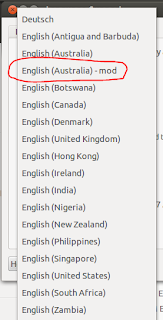
You can select your customised locale definition by using the Ubuntu's Regional Formats in the Language Support applet or fondly known as gnome-language-selector. If you have named your customised definition file appropriately, it will show up in the list like this:
All you then have to do is to select that (as circled in red). Close the dialog and log out and log in to bring that into use.
What actually happens behind the scene is that it modifies or creates the ~/.pam_environment file that records the locale settings meeting your selection. This file is not there unless you have change the Regional Formats. In my case the LC_TIME becomes:
LC_TIME=en_AU.UTF-8@mod
If you want to apply your change to the system, you simply modified the /etc/default/locale file.
Tuesday, May 21, 2013
Android is like the Windows XP days with little regards to user's protection
Months ago, I made a statement to my friends that effectively compared Android's operations or lack of security to the days of Windows XP and prior. The open neglect seems to follow the same excuse Windows use to make it easy for people to use. Now my observation is supported,
The Android threat landscape is starting to resemble that of Windows, according to F-Secure's Mobile Threat Report
The Android threat landscape is growing in both size and complexity with cyber criminals adopting new distribution methods and building Android-focused malware services, according to a report from Finnish security vendor F-Secure.
The number of mobile threats has increased by nearly 50 percent during the first three months of 2013, from 100 to 149 families and variants, F-Secure said in its Mobile Threat Report for Q1 2013 that was released on Tuesday. Over 91 percent of those threats target the Android platform and the rest target Symbian.What frightens me most and at the same annoying me is that when you install most applications, they demand access to your account, your phone, or other facilities that do not seem to be related to what the main function of the applications.
For example, I once wanted to install a PDF viewer and it demanded permission to access my phone contacts, etc. I have yet to see a PDF viewer in Linux/Windows demanding access to my Outlook or Thunderbird phone book, or my Google account. After all, it is just a program to render the PDF document and all it really need is read access to certain area where the document is held.
Then the other date I want to install a GPS logger but it too needed my Google Account, phone Contacts, phone logs, etc. Why? Is it just a program to jolt down the GPS location regular interval or on demand? All it really requires should be write access to the user's area and no more and no less.
If application demanding this kind of unnecessarily access of elevated privilege or to areas in Windows and Linux, they will be exposed as Trojan or Malware. But in Android, a form of Linux, it is an acceptable practice. Why?
As a result, I often do not install those applications that demand unreasonably access.
The only way to fix this rampant neglect of security is to turn everything off and then allowing the user to enable/disable access relating to features user requires. Ultimately it should be the responsibility of the phone owner. At the moment, the big switch is just too wide much like Windows XP where most people were using it without security.
Subscribe to:
Posts (Atom)