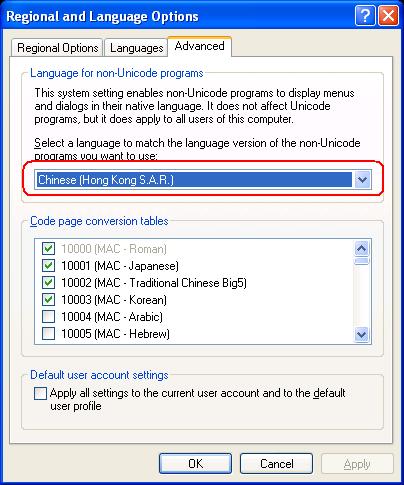
It is nice to report that Gpg4Win 2.1.0-rc1 has made small progress in fixing some of issue unearthed previously with respect to its problem in running in TChinese XP. Now a user running TChinese can use the GPA's user interface to submit passphrase to create a key.
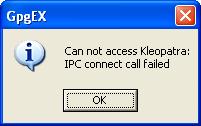
However, the Windows Explorer integration is still failing as reported. Sadly Kleopatra.exe still does not run when the "Language Settings for Non-Unicode Programs" is not set to English.
This Unix-Windows program still has a long way to go to achieve the environmental correctness of Firefox, Thunderbird, or TrueCrypt.
As a result, it is recommended users not to install GpgEX (the Windows Explorer integraion) as it is the very flaky and only works when your "Language Settings for Non-Unicode Programs" is set to English.
GPA is surprisingly usable if you can put up with some very foreign UI and appears to be unaffected by the "Language Settings for Non-Unicode Programs". It also works in TChinese Windows but not internationalized.
It stands out like a sore thumb when other programs in the TChinese XP have localized menu. Surely Unix/Linux is capable of handling Internationalization.
A site devoted to discussing techniques that promote quality and ethical practices in software development.
Showing posts with label Internationalization. Show all posts
Monday, January 3, 2011
Tuesday, August 24, 2010
Gpg4Win Fails in TChinese Windows
Further to my discovery of problem in Gpg4Win when the "Language for non-Unicode program" is not set to English, I decided to test it in Traditional Chinese Windows with "Language for non-Unicode program" set to same as the Unicode language (TChinese HK SAR) and to English US.
Sadly Gpg4Win will not allow me to enter passphrase when generating my key:
The captured screen shot did not show the mouse carot but it was actually inside the Passphrase edit box and no matter what I typed, nothing appearing.
The strange thing is that. I could enter my name and e-mail address, albeit very poor focusing handling, but only in the passphrase entry dialog did the program misbehave. This kind of misbehavior in part but not in other is common in this program.
Not deterred by this, my next test was to import a key that was generated in an English Windows XP. The import process worked fine.
But once again the Windows Explorer plug-in failed when I used the context menu to encrypt a small text file with the same misbehavior reported previously.
The next test is to use the File Manager (a rather clunky and clumsy user-interface. They should simply just make a Windows API call to invoke the familiar UI) from the GPA (GNU Privacy Assistance) to see if I could encrypt and decrypt the text file the loooooong way that could not be done via the Explorer plug-in.
Once again, like other features in Gpg4Win, parts work and other parts fail. The annoying things are those operations that fail aren't some exotic rarely used ones. I could encrypt a text file but when I tried to decrypt it, I was met with this familiar dialog box:
The content showed the correct armor text. To prove that the file was correctly encrypted, I took this file to an English Windows and it decrypted it fine. This clear shows another bug in Gpg4Win.
Conclusion:
Gpg4Win 2.0.4 does not work in a non-English Windows or English Windows with non-English language for "Language for non-Unicode program" settings.
Sadly Gpg4Win will not allow me to enter passphrase when generating my key:
The captured screen shot did not show the mouse carot but it was actually inside the Passphrase edit box and no matter what I typed, nothing appearing.
The strange thing is that. I could enter my name and e-mail address, albeit very poor focusing handling, but only in the passphrase entry dialog did the program misbehave. This kind of misbehavior in part but not in other is common in this program.
Not deterred by this, my next test was to import a key that was generated in an English Windows XP. The import process worked fine.
But once again the Windows Explorer plug-in failed when I used the context menu to encrypt a small text file with the same misbehavior reported previously.
The next test is to use the File Manager (a rather clunky and clumsy user-interface. They should simply just make a Windows API call to invoke the familiar UI) from the GPA (GNU Privacy Assistance) to see if I could encrypt and decrypt the text file the loooooong way that could not be done via the Explorer plug-in.
Once again, like other features in Gpg4Win, parts work and other parts fail. The annoying things are those operations that fail aren't some exotic rarely used ones. I could encrypt a text file but when I tried to decrypt it, I was met with this familiar dialog box:
The content showed the correct armor text. To prove that the file was correctly encrypted, I took this file to an English Windows and it decrypted it fine. This clear shows another bug in Gpg4Win.
Conclusion:
Gpg4Win 2.0.4 does not work in a non-English Windows or English Windows with non-English language for "Language for non-Unicode program" settings.
Labels:
gpg,
Internationalization
Sunday, August 15, 2010
GPG3Win 2.0.4 Windows Explorer Context menu still fails to work
This is my pet project to see how long it takes Gpg4Win to produce a Windows Explorer context menu that is capable to encrypt and decrypt files.
My test environment is XP Pro SP3 (English Windows) with HK SAR as the language setting for non-Unicode Programs. Gpg4Win's explorer context menu fails to encrypt and decrypt a file producing the following familiar dreaded message box:
To get this feature working one has to change the "Language for non-Unicode program" is set to English. This is an unnecessary demand clearly indicating a lack of Internationalization Programming prowess. It presents great inconvenience to non-English speaking Windows users. Sad to see this bug still lingering on for so long.
It is another case of using 'It-works-here' development methodology.
My test environment is XP Pro SP3 (English Windows) with HK SAR as the language setting for non-Unicode Programs. Gpg4Win's explorer context menu fails to encrypt and decrypt a file producing the following familiar dreaded message box:
To get this feature working one has to change the "Language for non-Unicode program" is set to English. This is an unnecessary demand clearly indicating a lack of Internationalization Programming prowess. It presents great inconvenience to non-English speaking Windows users. Sad to see this bug still lingering on for so long.
It is another case of using 'It-works-here' development methodology.
Labels:
gpg,
Internationalization
Tuesday, May 11, 2010
A review of two Windows 7 Tablet PCs with touch support
I was looking to buy a Windows 7 tablet PC that was more than a touch sensitive notebook. I am not a novice to Tablet as I am still using a T1510 when it was first release several years ago. Any candidate must be able to write like a tablet PC as the primary requirement, which means you can input without the use of the keyboard by means of the TIP (Tablet Input Panel) and touch support was a secondary requirement.
I narrow down to two: Acer Multi-Touch and Fijitsu T4310L both running Windows 7 Home Edition. The processor specification was of secondary concern to me. The functioning as a tablet was more important to me.
Because of the price difference and the weight, the Acer was the first that attracted my attention. In all respect this machine had every tablet tools and support - TIP, Journal Writer, Snipping tool and sticky note, except one thing.
This machine does not come with a pen and rely solely on touch operation which was currently in vogue. This decision by Acer defied the natural human instincts. No human I know of writes with a finger otherwise Quill was never discovered. But Acer, in search of being vogue failed to deal with this probably. Most likely buyers' ignorance and misconception of a touch computer and a tablet. I placed the blame on the level of competence on the sales people.
A quick test of writing my name was a real struggle with the TIP and I challenged anyone to write more complicated text such as any Chinese characters on it. Even the sales person had a real struggle. Sure you could flick through image files with ease with a finger but you could not flick out a sentence or even some basic words.
Seeing several people struggling with it, I declared that Acer was not only an unsuitable Tablet PC but also bordering on not being a Tablet PC either. It is basically a touch sensitive notebook with all the Tablet tools, that no one can basically use. Its bias towards touch robbed its market share. It was more than a touch (pardon the punt) of disappointment.
I would definitely not recommend this to anyone as a Tablet PC. If your sole purpose was to get that flicking and touching actions, then you could do a lot better with a purely touch sensitive notebook, rather paying for an imitation Tablet PC.
With this shocking disappointment, I moved over to a Fijitsu T4310L with Windows 7 Home edition. This machine came with a special pen and also reacted to touch, like flicking. Writing on the TIP with that pen instantly showed the difference between this and the Acer. It was like comparing a Harley Davidson with a bicycle.
It was pure joy to write with the pen on this machine, even to a novice by-stander. Coupled with the smart recognizer, which was also available to Acer but incapable to exploit it properly, the degree of accuracy was several order of magnitude of improvement over my T1510. The special pen had programmable buttons on it as well as an eraser at the top of it.
The only disappointment was that it used a special pen that was expensive to replace. Without it, one had to resort to using the finger and this brought it back to the level of incompetency of the Acer.
With respect to some of messages from Microsoft on the combination of hand writing recognizers one could have in a Home Edition, I was pleasantly surprised to see the presence of Traditional and Simplified Chinese recognizers in an English Windows 7 Home Edition.
I was so disappointed with the Acer that I did not bother to try to discover this support. The other reason was that I could not use the finger to touch that tiny down arrow to drop down the language options in the TIP. Not such frustration on the T4310.
Hence I could not be certain if the policy reported had been repealed quietly for the sake of good common sense and now an English Home Edition could have any other language recognizers one needed, just like previous editions of Windows. But I could be certain that it was available in my T4310 running Windows 7 Home Edition.
T4310 was a clear winner, even though it was dearer. What's the use buying a cheaper Tablet PC imitation.
I narrow down to two: Acer Multi-Touch and Fijitsu T4310L both running Windows 7 Home Edition. The processor specification was of secondary concern to me. The functioning as a tablet was more important to me.
Because of the price difference and the weight, the Acer was the first that attracted my attention. In all respect this machine had every tablet tools and support - TIP, Journal Writer, Snipping tool and sticky note, except one thing.
This machine does not come with a pen and rely solely on touch operation which was currently in vogue. This decision by Acer defied the natural human instincts. No human I know of writes with a finger otherwise Quill was never discovered. But Acer, in search of being vogue failed to deal with this probably. Most likely buyers' ignorance and misconception of a touch computer and a tablet. I placed the blame on the level of competence on the sales people.
A quick test of writing my name was a real struggle with the TIP and I challenged anyone to write more complicated text such as any Chinese characters on it. Even the sales person had a real struggle. Sure you could flick through image files with ease with a finger but you could not flick out a sentence or even some basic words.
Seeing several people struggling with it, I declared that Acer was not only an unsuitable Tablet PC but also bordering on not being a Tablet PC either. It is basically a touch sensitive notebook with all the Tablet tools, that no one can basically use. Its bias towards touch robbed its market share. It was more than a touch (pardon the punt) of disappointment.
I would definitely not recommend this to anyone as a Tablet PC. If your sole purpose was to get that flicking and touching actions, then you could do a lot better with a purely touch sensitive notebook, rather paying for an imitation Tablet PC.
With this shocking disappointment, I moved over to a Fijitsu T4310L with Windows 7 Home edition. This machine came with a special pen and also reacted to touch, like flicking. Writing on the TIP with that pen instantly showed the difference between this and the Acer. It was like comparing a Harley Davidson with a bicycle.
It was pure joy to write with the pen on this machine, even to a novice by-stander. Coupled with the smart recognizer, which was also available to Acer but incapable to exploit it properly, the degree of accuracy was several order of magnitude of improvement over my T1510. The special pen had programmable buttons on it as well as an eraser at the top of it.
The only disappointment was that it used a special pen that was expensive to replace. Without it, one had to resort to using the finger and this brought it back to the level of incompetency of the Acer.
With respect to some of messages from Microsoft on the combination of hand writing recognizers one could have in a Home Edition, I was pleasantly surprised to see the presence of Traditional and Simplified Chinese recognizers in an English Windows 7 Home Edition.
I was so disappointed with the Acer that I did not bother to try to discover this support. The other reason was that I could not use the finger to touch that tiny down arrow to drop down the language options in the TIP. Not such frustration on the T4310.
Hence I could not be certain if the policy reported had been repealed quietly for the sake of good common sense and now an English Home Edition could have any other language recognizers one needed, just like previous editions of Windows. But I could be certain that it was available in my T4310 running Windows 7 Home Edition.
T4310 was a clear winner, even though it was dearer. What's the use buying a cheaper Tablet PC imitation.
Labels:
Internationalization,
Tablet PC,
Windows 7
Wednesday, April 21, 2010
DIR command in XP does not display Chinese correctly in English Windows
This is a very annoy issue I have just come across mistakenly believing XP being a Unicode OS and that its DIR command will display any characters you can create mirroring that in the Windows Explorer.
Such is not the case. While this post discusses issues with the DIR command in XP in handling Chinese characters, the problem applies equally to other languages.
I have a test file like this shown in Windows Explorer:
In CMD the DIR command returns this:
Which is not what I want or expect. So what is the reason behind this? I thought PowerShell being a .Net implementation of a shell can surely handling this. Despite following these advices, it produces the same result as above.
It turns out that the DIR/CMD uses non-Unicode API to display the file name as a result one has to change the "Language for non-unicode programs" in "Regional and Language Options" via the Control Panel to the Chinese code page as follows:
With this setting, the DIR command displays the file name correctly:
Just to prove the point, I then use the chcp command to change the code page to 1252 and this produces the following result:
Which is what we have got before.
While the DIR displays the file name incorrectly, if you starts CMD with the /U switch and you redirect the DIR output to a text file, the content of the text file is in full Unicode and the Chinese file name is displayed in say Notepad correctly.
So the moral of the story is that you must set the "Language for non-Unicode Programs" to the correct code page in order to produce visually correct file name in the DIR. This has no effect on batch file or redirection if you launches the CMD with the /U.
Such is not the case. While this post discusses issues with the DIR command in XP in handling Chinese characters, the problem applies equally to other languages.
I have a test file like this shown in Windows Explorer:
In CMD the DIR command returns this:
Which is not what I want or expect. So what is the reason behind this? I thought PowerShell being a .Net implementation of a shell can surely handling this. Despite following these advices, it produces the same result as above.
It turns out that the DIR/CMD uses non-Unicode API to display the file name as a result one has to change the "Language for non-unicode programs" in "Regional and Language Options" via the Control Panel to the Chinese code page as follows:
With this setting, the DIR command displays the file name correctly:
Just to prove the point, I then use the chcp command to change the code page to 1252 and this produces the following result:
Which is what we have got before.
While the DIR displays the file name incorrectly, if you starts CMD with the /U switch and you redirect the DIR output to a text file, the content of the text file is in full Unicode and the Chinese file name is displayed in say Notepad correctly.
So the moral of the story is that you must set the "Language for non-Unicode Programs" to the correct code page in order to produce visually correct file name in the DIR. This has no effect on batch file or redirection if you launches the CMD with the /U.
Labels:
Internationalization,
XP
Subscribe to:
Posts (Atom)